Building a 400-Option Design Center Without Typing 400 Options
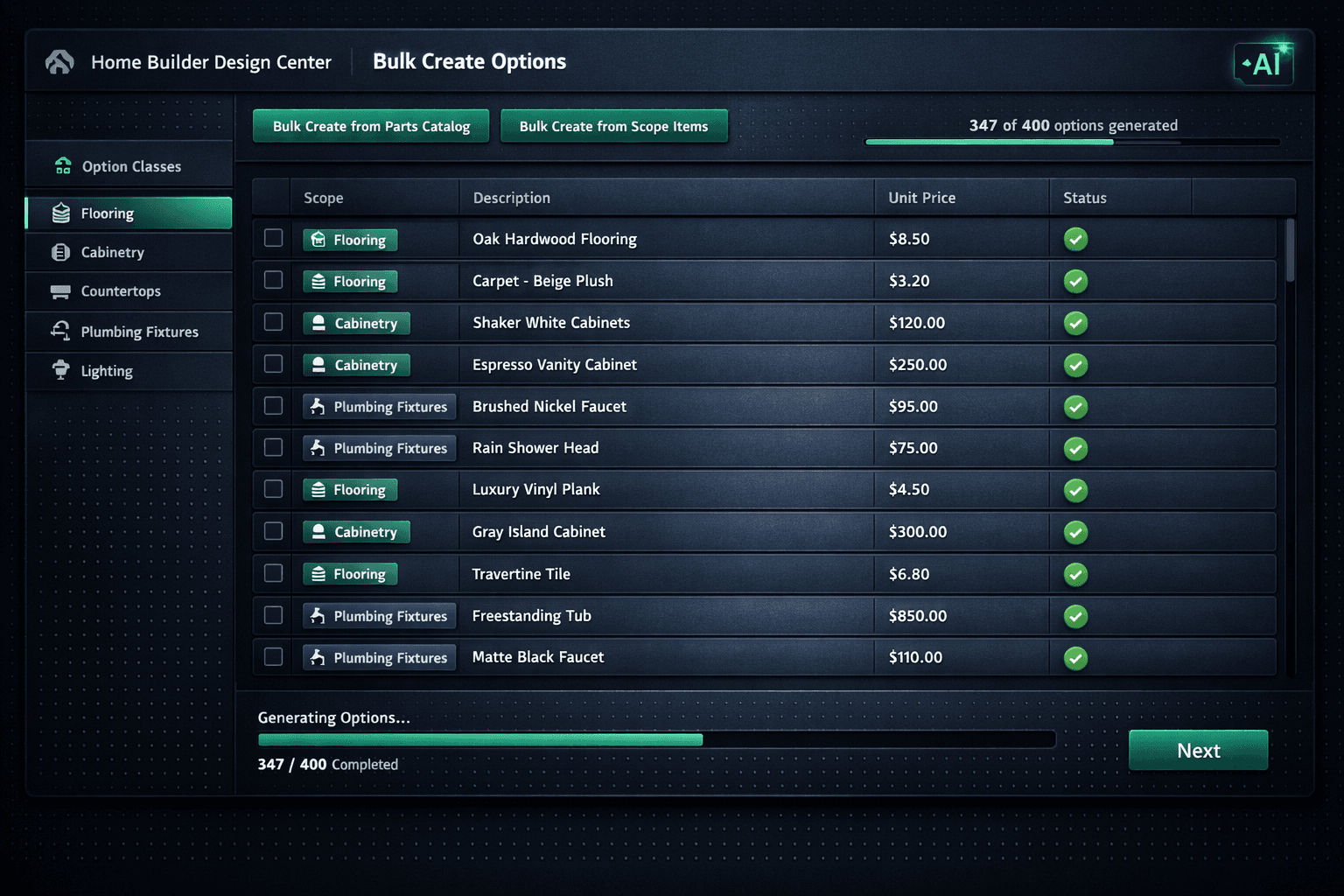
The biggest reason production builders stall out setting up a design center isn't the software — it's the catalog. Bulk-create options directly from your parts catalog and scope items, and a full 400-option catalog across seven categories becomes an afternoon's work rather than a month's.
Most construction software treats the design center catalog as a data-entry project. Someone sits down and types every option: the name, the unit, the scope tag, the spec level, and hopefully a price — for every flooring material, every cabinet style, every countertop, every plumbing fixture, and every light fixture across every floorplan. At 400 options that is weeks of entry before the first buyer sees a selection screen. Teams start, stall, and the design center never goes live.
The better path is to build the catalog from data that already exists in the platform rather than typing it in from scratch.
Where do bulk-created options come from?
Cornerstone's Design Center supports two bulk-creation sources: the parts catalog and scope items. Both paths skip the blank-field data entry problem because the option inherits its identity from a record that already carries the right name, unit, and scope tag.
From the parts catalog: open an option class, select “Bulk Create from Parts Catalog,” and Cornerstone filters the catalog to parts whose scope matches the option class. Select the parts that should become options, confirm, and Cornerstone generates them. A flooring tile from the catalog becomes a flooring option without a single field retyped.
From scope items: for options that map to existing scope items rather than individual parts — a framing labor line, a painting allowance, a fixture package — use “Bulk Create from Scope Items.” Cornerstone generates options from the scope-item records in the same one-step flow. Any scope item with accepted vendor pricing creates an option with that price attached. Any scope item without accepted pricing creates an option flagged as needs pricing — an honest prompt to finish the bid cycle, not a made-up number.
Manual catalog entry vs. bulk creation
Why do scope links matter for design options?
Every option in Cornerstone is filed under an option class, and every option class is tied to a scope. That scope link is what keeps a tile selection out of an electrical bid template and keeps a lighting fixture out of a plumbing comparison.
When a vendor receives a bid request, the bid template is filtered to the vendor's scope — so a flooring vendor sees flooring options and nothing else. When a buyer makes a selection in the design center, the selected option flows to the right scope line in the Master Cost Budget automatically. The design center and the budget never disagree because they share the same scope structure.
Bulk creation preserves this structure. When you create options from a parts catalog filtered to the Flooring option class, every generated option inherits the Flooring scope. There is no step where a mis-scoped line slips through because someone was copying and pasting rows in a spreadsheet.
What about pricing — does bulk create invent costs?
No. Cornerstone enforces a platform-wide hard cost rule: nothing carries a stored or default cost, and bulk option creation follows the same rule. Options generated from parts with accepted vendor pricing carry that real price. Options generated from parts or scope items with no accepted pricing show as $0 / needs pricing — a visible gap that tells the purchasing team exactly where to go next in the bid cycle.
Why “needs pricing” is better than a made-up number
Design-center tools that ship default cost libraries let builders forget to update them. A tile option priced at a 2022 material cost is worse than a tile option that clearly shows $0 — the second one tells the truth. Every upgrade price a buyer sees in the Cornerstone design center traces back to accepted vendor pricing, not estimator guesses.
How does Foreman AI fit into catalog management?
For builders who would rather describe the catalog than click it — or who need to add, update, or reorganize options as the vendor lineup changes — Foreman AI can manage catalog work by conversation.
Ask Foreman to add a new plumbing fixture option to the Plumbing Fixtures class and it creates the option following the same scope-first, vendor-priced flow a purchasing manager would use by hand — no default cost invented, scope linked correctly, flagged as needs pricing until a real bid is accepted. Ask it to move an option from Standard to Upgrade I spec level and it makes the change in one step, which automatically moves that option out of the base price and into the buyer's paid upgrade column.
This is the same read-and-write pattern that makes Foreman an agent rather than a chatbot: the options it creates are real records in the platform, not a chat transcript to copy out later.
What bulk creation gives you
Parts catalog source
Parts already in Cornerstone from takeoffs and vendor pricing become design options in one step — no retyping product names, units, or scope tags.
Scope items source
Scope items with accepted vendor pricing generate options with real prices attached. Items without accepted pricing create options flagged as needing pricing.
Scope-linked option classes
Every option is filed under an option class, and every option class is tied to a scope. A flooring option can only appear in flooring bid templates — never in plumbing.
Hard cost rule enforced
Bulk creation never invents a cost. Every dollar in the catalog traces back to accepted vendor pricing or shows as needs pricing — no estimator fudging baked into the catalog.
Foreman AI for ongoing changes
Ask Foreman to add, update, or reorganize catalog options by conversation. It follows the same scope-first, vendor-priced rules the manual flow uses.
What happens after the catalog is built?
A populated option catalog is the foundation for the rest of the design center. Once options are in the platform, they can be grouped into Designer Packages — the 64 curated bundles across seven categories that auto-lock coordinated choices when a buyer picks a style. A buyer who selects the Modern Farmhouse package gets the right flooring, the right cabinet pull, and the right countertop automatically instead of being asked to assemble them one option at a time.
Option classes link to scope, so selections feed the budget automatically. Exclusion groups make conflicting choices impossible — a buyer can pick Carpet, Tile, LVP, or Hardwood in the Flooring class, but picking one marks the category complete rather than asking them to pick all four. Spec levels let builders promote any standard finish to a paid upgrade with a single change, down to the individual option rather than the whole category.
All of that functionality depends on the catalog being complete and correctly scoped. The fastest path to a working design center is building the catalog from data that already exists — then letting the platform's structure do the rest.
Stand up a full design center this week.
Cornerstone's bulk option creation, scope-linked option classes, and Foreman AI reduce a month-long catalog project to an afternoon. See the full production home builder design center in action.
Request Early Access