Design Center Exclusion Groups: Let Buyers Pick One From Many
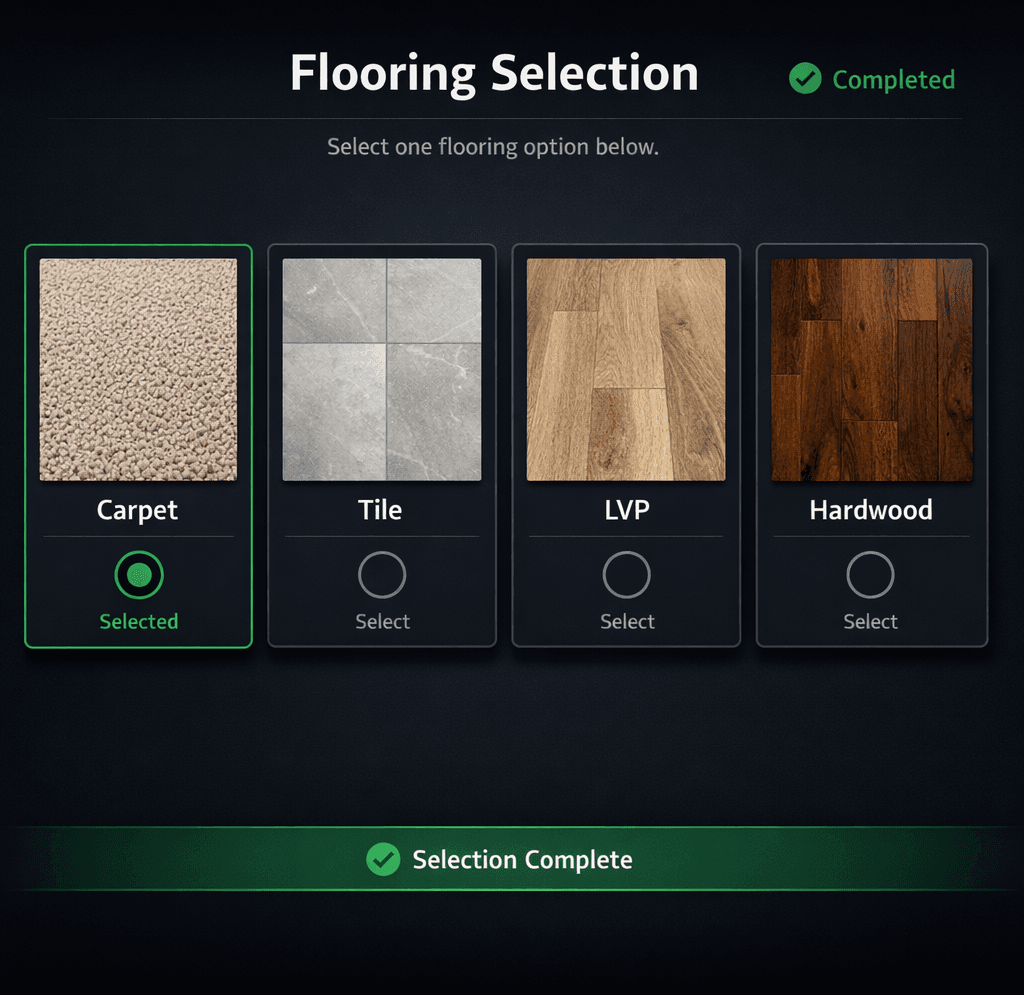
Exclusion groups in Cornerstone PM’s design center solve a specific problem that every builder hits when marking selections required: buyers shouldn’t have to pick Carpet AND Tile AND LVP AND Hardwood — they pick one flooring type, and the category is done. One pick. Category complete. No more “incomplete” flags on every plan.
Why Does This Problem Exist in the First Place?
Most design center software treats “required” as a binary: either a selection is required or it isn’t. That works fine when there’s exactly one option per category. But real design centers have mutually exclusive choices — flooring types, roofing materials, countertop finishes. A buyer who picks Tile doesn’t also need to pick Carpet, LVP, and Hardwood.
Without exclusion group logic, builders face two bad options:
- Mark all flooring options as required → buyer must “select” every type to satisfy the completion check (broken UX, nonsensical selections)
- Leave flooring options as optional → the selection progress dashboard permanently shows “incomplete” for Carpet, LVP, and Hardwood even after the buyer chose Tile (useless progress tracking)
Neither approach gives builders clean selection-progress reporting or buyers a sensible experience. Buildertrend, JobTread, and NEWSTAR all handle this the same way — per-item required flags with no option-class exclusivity modeling. The concept of “pick exactly one from this set” doesn’t exist natively in any of those platforms.
How Exclusion Groups Work in Cornerstone PM
An exclusion group links multiple option classes under a single pick-one rule. When a buyer selects any option within any class in the group, all other classes in that group are automatically satisfied — no further input is needed from the buyer for that decision.
Here’s what that looks like in practice for three common design center categories:
Flooring Type
Option classes: Carpet, Tile, LVP, Hardwood
Buyer picks Tile → Carpet, LVP, and Hardwood auto-satisfy. Flooring category turns green.
Roofing Material
Option classes: Asphalt Shingles, Metal Roof
Buyer picks Metal Roof → Asphalt Shingles auto-satisfies. Roofing category complete.
Countertop Finish
Option classes: Granite, Quartz
Buyer picks Granite → Quartz auto-satisfies. Countertop category complete.
How to Set Up an Exclusion Group (5 Steps)
Configuring exclusion groups takes about 15 minutes for a complete design center setup. Here’s the exact flow:
Navigate to Design → Selection Rules → Exclusion Groups
From your Cornerstone PM dashboard, open the Design Center and find Selection Rules. Click Exclusion Groups to see existing groups or create a new one.
Create a new Exclusion Group
Click New Group and give it a descriptive name — "Flooring Type", "Roofing Material", or "Countertop Finish". This name appears in builder dashboards and buyer-facing selection progress views.
Drag in the mutually exclusive Option Classes
Drag and drop the option classes that should be treated as pick-one into this group. For flooring: Carpet, Tile, LVP, Hardwood. Each class stays in its own category but now participates in the group's pick-one rule.
Set the rule to Pick One
Select "Pick One" as the group rule. This tells the design center that as soon as a buyer selects any option within any class in this group, all other classes in that group become automatically satisfied.
Save and verify the buyer experience
Save the group. In the buyer-facing design center, test it: select Tile and confirm that Carpet, LVP, and Hardwood are no longer flagged incomplete. The category progress bar turns green. Selection reports clean up instantly.
What Changes in Reporting and Buyer Experience?
The downstream effect on reporting is immediate. Before exclusion groups, a builder with four flooring option classes would see four separate “incomplete” entries in selection progress for every buyer who made any flooring choice. After configuring the exclusion group, a single flooring selection resolves all four — one completed entry, three auto-satisfied, zero noise.
For buyers, the experience is cleaner and more intuitive. They’re not asked to interact with options they have no intention of choosing. The progress meter moves correctly when they make their pick, instead of stalling at “3 of 7 complete” because the system is waiting for them to also “select” three flooring types they’ve already implicitly rejected.
For builders reviewing selection progress across a 50-home community, the dashboard difference is significant. Instead of scanning through 200+ “incomplete” flags that are really just “buyer picked Tile instead of Carpet,” you see actual incompletions — decisions the buyer genuinely hasn’t made yet.
Why Don’t Buildertrend and JobTread Do This?
Both Buildertrend and JobTread were built primarily for custom builders, where design selections are negotiated job-by-job with individual allowances. In that workflow, the concept of “option classes that are mutually exclusive at the category level” rarely comes up — you’re managing one buyer’s unique selections, not a repeating design center with plan-level option logic.
Production builders have a fundamentally different structure: the same Magnolia plan sells 80 times across four communities, and buyers are choosing from a curated menu of option classes that were defined once at the plan level. That structure requires group-level exclusivity logic — not just per-item required flags.
NEWSTAR has the data model for production builders but lacks the modern UI layer. Exclusion Groups are the kind of interaction design that comes from building a product ground-up for web in 2026 — not retrofitting selection logic onto a decades-old ERP.
Design Center Features That Work Together
Exclusion groups pair naturally with other Cornerstone PM design center capabilities:
- 64 curated Designer Packages that auto-lock all category options when a package is selected — buyers pick a package OR pick à la carte via exclusion groups
- Option Classes tied to scope items — a flooring selection can link to the Flooring Labor scope, ensuring vendor bid templates automatically include only the relevant trade
- Area Cost Pricing for community-level extras — add premiums for specific communities without disrupting the core exclusion group logic
- Selection progress dashboards that show real completion status across every buyer in every community
Is This the Right Platform for Your Design Center?
Exclusion groups are one feature in a broader production-builder design center that includes Designer Packages, option-scope linking, Structural vs. Designer scope separation in bid templates, and per-floorplan options reused across every home of that plan in every community.
If you’re comparing platforms, see how Cornerstone PM stacks up against the tools production builders typically consider on our home builder project management software overview — including why custom-builder tools like Buildertrend and JobTread lack the plan-level design center model entirely.
Ready to Clean Up Your Selection Progress?
Set up exclusion groups, Designer Packages, and auto-quantity scope items in a design center built for production builders — not retrofitted from custom-builder roots.
Request Early Access