Employee Timesheets for Home Builders: Shift Hours Without a GPS Time Clock
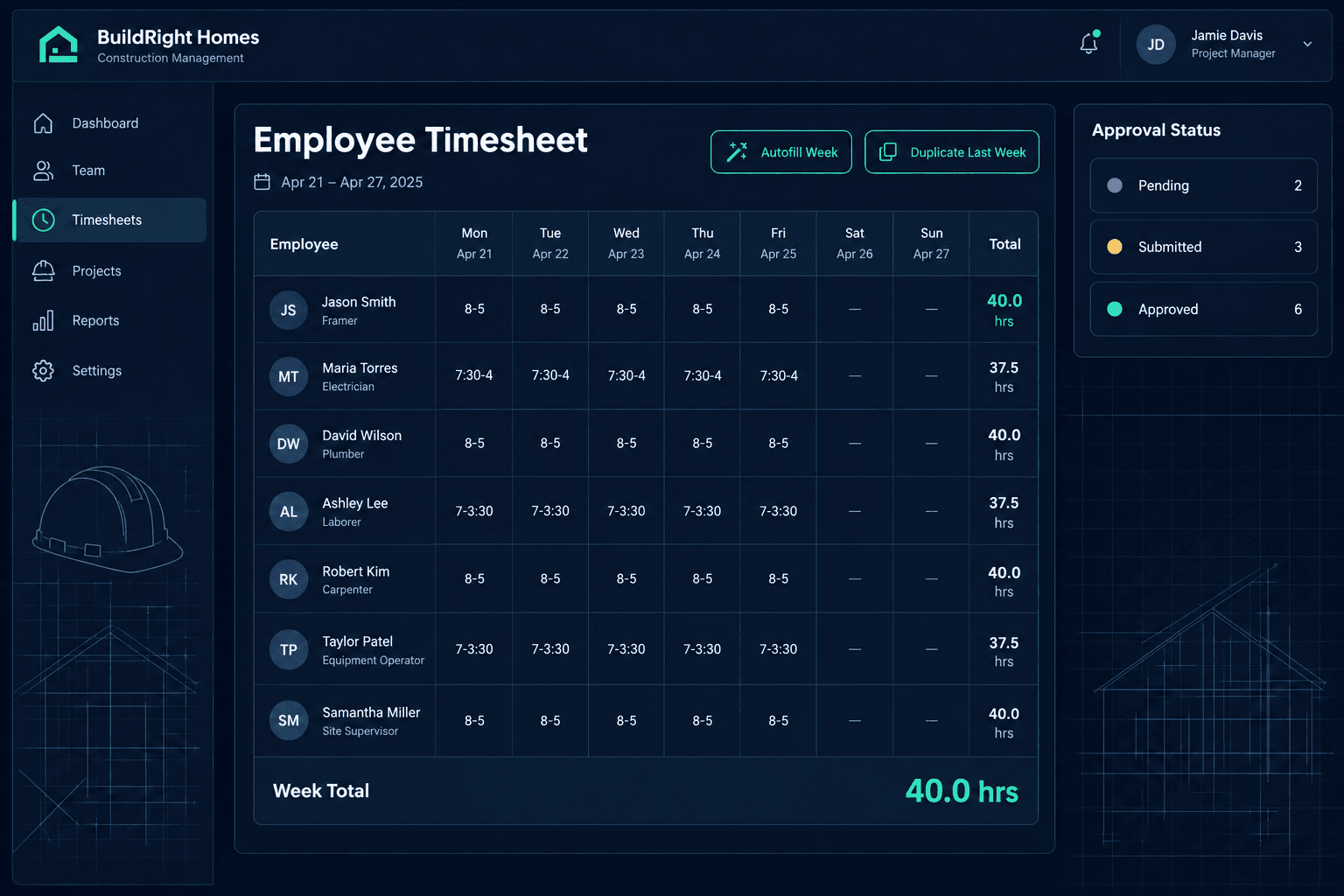
Cornerstone PM’s Employee Timesheets let office and field staff log hours as a shift — type “8-5” and the system calculates 8 hours after a 1-hour lunch deduction — then route the week through a simple submit-and-approve workflow. It’s an opt-in feature built for teams that need clean hour logging, not GPS punch clocks.
Most construction time-tracking tools assume every builder wants GPS-verified clock-ins tied to a jobsite geofence. That’s useful for some crews, but plenty of home builders just need an honest, fast way for office staff and field employees to record how many hours they worked each week — without location-tracking overhead or a separate app to install. Cornerstone’s construction management platform ships Employee Timesheets as an opt-in module for exactly that use case.
How do you turn on Employee Timesheets?
The feature is disabled by default. An admin enables it under Construction → Settings with a single toggle labeled “Employee Timesheets.” Nothing changes for any team until that toggle is flipped on — builders who don’t need timesheet tracking never see the module at all.
How does shift-based entry work?
Instead of forcing employees to do their own math, Cornerstone parses the shift format directly. Type “8-5” and the system reads it as 9 hours on the clock minus a 1-hour lunch deduction, landing on 8 billable hours. Other accepted formats include “7:30-4,” “7-3:30,” and plain numbers like “8” or “8.5” for staff who don’t track an exact in/out time. The weekly grid runs Monday through Sunday with a running week total, so anyone entering hours can see their total update as they go.
Enable the toggle
Construction → Settings → Employee Timesheets. Disabled by default; an admin turns it on when ready.
Log a shift
Type “8-5,” “7:30-4,” or a plain number into any day on the weekly grid. Cornerstone calculates the hours automatically, including the lunch deduction.
Autofill or duplicate
Autofill Week copies one day to Mon–Fri. Duplicate Last Week copies last week's shift times forward — both save re-typing a consistent schedule.
Submit → approve → or reject
Employee submits the week (PENDING → SUBMITTED). A manager approves it or rejects it with a reason; rejected timesheets can be edited and resubmitted.
Manager review and CSV export
The Timesheet Reports page shows every team member's day-by-day breakdown, with approve, reject, and bulk-approve actions plus CSV export for payroll.
What do Autofill Week and Duplicate Last Week save?
Two shortcuts cut down on repetitive entry. Autofill Week takes whatever shift you typed for one day and copies it across Monday through Friday in a click — built for the employee who works the same 8-5 shift all week. Duplicate Last Week copies the prior week’s shift times into the current week, which covers the more common case of a schedule that repeats with only occasional exceptions. Either way, nobody is re-typing five identical shift entries every Monday.
How does the approval workflow work?
Every timesheet moves through a simple state machine: PENDING while the employee is still entering hours, SUBMITTED once they hand it off for review, then either APPROVED or REJECTEDby a manager. A rejected timesheet isn’t a dead end — the employee can edit the hours and resubmit it, so a typo or a missed day doesn’t require starting the week over.
Who can see whose timesheets?
Manager visibility is role-based. Construction managers see their construction crew’s timesheets; purchasing managers see purchasing agents; the Timesheet Reports page at /construction/timesheet-reports scopes what each manager sees to their own team. From that page, a manager can review day-by-day breakdowns, approve individual timesheets, bulk-approve a batch at once, or export the data to CSV for payroll processing.
Is this a GPS time clock?
No, and that’s intentional. Employee Timesheets is simple shift and hour logging for office and field staff — it doesn’t capture GPS coordinates, geofence a jobsite, or require a punch-in/punch-out app running in the background. For builders who already track crew presence on-site through vendor jobsite check-ins and QR-based arrival tracking, timesheets fill a different need: a clean hours record for internal employees, not a location audit trail for subcontractors.
Why ship this as opt-in instead of always-on?
Not every builder tracks hourly staff the same way, and plenty run payroll through a dedicated HR system that already handles time tracking. Making Employee Timesheets an opt-in toggle under Construction → Settings means it adds zero clutter for teams that don’t need it, and turns on in minutes for teams that do — without a support ticket or an implementation project. That’s consistent with how the rest of Cornerstone PM is built: core production workflows ship on, secondary modules like this one ship off until a builder decides they want them.
Shift-based hours, a weekly grid with autofill shortcuts, a real approval workflow, and a CSV export for payroll — Employee Timesheets is a small, focused module that solves one specific problem without forcing every builder into a GPS time clock they didn’t ask for. It sits alongside the rest of Cornerstone’s construction scheduling tools, available the moment a builder flips the toggle on.
Turn on shift-based timesheets in minutes
Cornerstone PM’s Employee Timesheets give office and field staff a fast way to log hours, with manager approval and CSV export built in — no GPS time clock required.
Request Early Access →