A Finish Upgrade Is More Than a Product: Build the Installation Into the Option
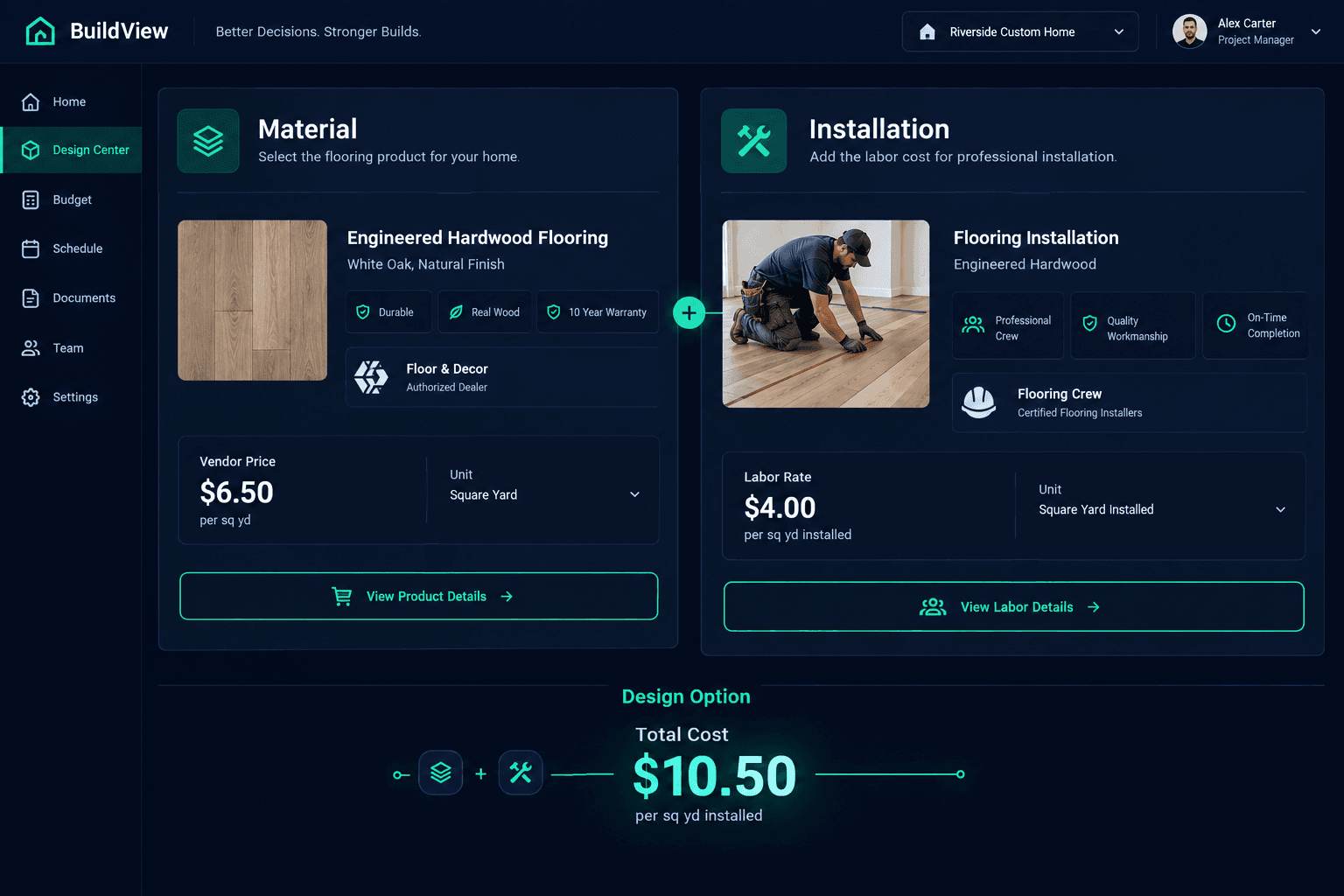
A design option that only carries a material price is only half a budget line. In Cornerstone PM's Design Center , an individual option can attach both a part (the material) and a scope item (the installation labor), so its total cost reflects what it actually takes to deliver — not just what the product costs on a pallet.
Most design-center tools treat an upgrade as a single line: pick the product, attach a price, done. That works fine for a candle or a light fixture where the buyer installs it themselves. It falls apart for anything that needs a trade on-site — flooring, countertops, cabinetry, plumbing fixtures — because the product price and the install price are two different numbers from two different vendors, and a budget that only captures one of them is wrong by definition.
What actually makes up the cost of a design option?
Cornerstone PM's Design Options Manager builds an option's cost from two kinds of attachments:
Parts (the material)
A parts catalog item — the physical product being upgraded to. Its cost is the vendor's accepted price for that material, priced in whatever unit makes sense (per square yard, per square foot, per unit).
Scope items (the installation)
A scope item — the labor or service needed to put that material in place. Its cost is the accepted rate for that trade's work, tracked separately from the material it installs.
An option can carry one, the other, or both. A part alone is correct for a self-installed upgrade. A part plus a scope item is correct for anything a trade has to install — which, in practice, is most of what shows up in a production builder's design center.
A concrete example: the carpet upgrade
Say a floorplan offers a standard carpet and a premium plush upgrade. The upgrade option needs two things attached to represent its real cost:
| Attachment | What it represents | Source of price |
|---|---|---|
| Part: Premium plush carpet | Material, priced per square yard | Accepted flooring vendor bid |
| Scope item: Carpet installation labor | Labor, priced per square yard installed | Accepted installer bid |
The option's total cost is the sum of both. If only the part is attached, the option looks cheaper than it is — the budget shows the carpet's material cost and silently omits what it costs to get it on the floor. Attach both, and the number a superintendent or estimator sees is the number the home actually needs.
Why a material-only option quietly breaks your budget
This gap doesn't show up immediately. A single option missing its installation scope item might understate cost by a few hundred dollars — easy to miss on one home. But a production builder is selling the same floorplan and the same upgrade options across dozens or hundreds of homes. A material-only carpet option that understates true cost by even $850 turns into tens of thousands of dollars of margin erosion once it's multiplied across every home that plan sells in every community.
The fix isn't a spreadsheet adjustment after the fact — it's making sure the option was built correctly the first time, with both the material and the labor attached where a trade is required.
Where the numbers actually come from
Cornerstone PM doesn't let a design option quietly run on placeholder pricing. The cost of a part or a scope item comes from accepted vendor pricing — a bid your team has actually reviewed and approved for that material or that labor. If a part or scope item on an option doesn't have an accepted price attached yet, that's a visible gap that needs review, not a default number filled in to make the option look complete.
Missing prices stay visible
An option with an unpriced part or scope item is a flag for someone to go get a bid — not a $0 line that quietly makes the option look free.
Real numbers, not estimator fudging
Every dollar on the option traces back to a specific accepted bid from a specific vendor — not a rounded guess carried forward from last year's budget.
Assembling one option, not building the whole catalog
It's worth being clear about scope here: this is about the contents of a single option on a single floorplan — deciding which part and which scope item belong to it so its cost is complete. It is not about bulk-creating an entire options catalog across every plan, setting up option-class taxonomy, or defining retail markup rules. Those are real parts of running a design center, and Cornerstone PM handles them, but they're a separate layer built on top of correctly-assembled options.
Get the option right at the individual level first — the right part, the right scope item, both priced from accepted vendor bids — and everything built on top of it, from category pricing to community-level upgrade tiers, inherits that accuracy instead of inheriting the gap.
What this doesn't do automatically
Cornerstone PM does not automatically discover what labor a given material requires, and it does not automatically check whether a part and a scope item are compatible with each other. Attaching the correct scope item to an option is still a decision your team makes — the platform simply makes sure that once you've made that decision, both pieces are tracked, priced from accepted vendor data, and reflected in the option's total cost every time that floorplan is used.
That distinction matters for how you review your design center: the platform won't catch a missing scope item for you the way it will flag a missing accepted price. Building the habit of checking that every trade-installed option has both a part and a scope item attached is still on your team — Cornerstone PM just makes the gap visible instead of hidden.
Build design options that price the whole job
Cornerstone PM's Design Options Manager attaches both materials and installation labor to every option, priced from accepted vendor bids — so your budget reflects what a finish upgrade actually costs to deliver.
Request Early Access