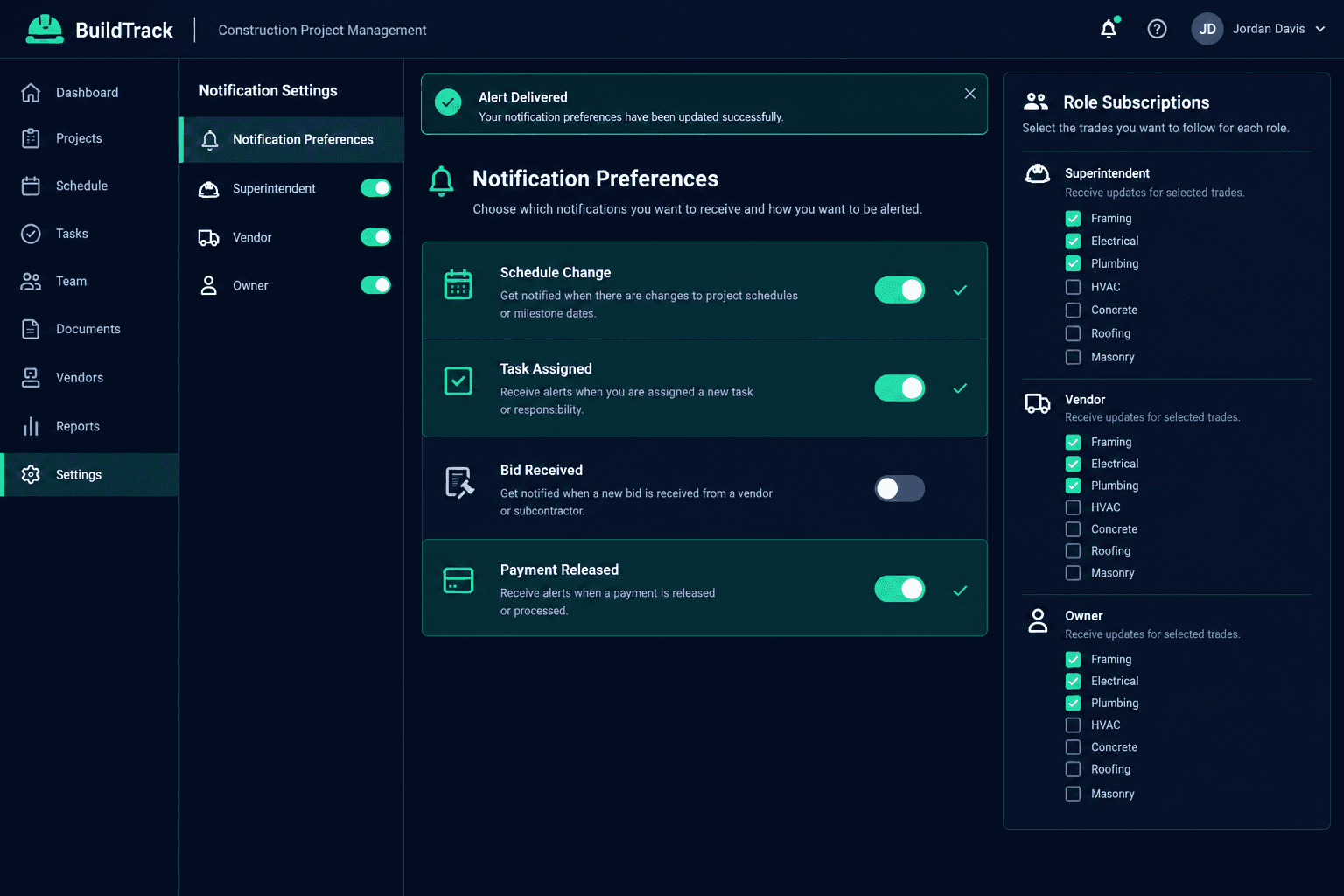
Missing a Construction Alert? Check Preferences Before Blaming the Schedule
When someone says they never got a notification, confirm the record changed first, then walk their personal preferences, role subscriptions, and spam folder before treating it as a system failure — most "missing alerts" are a settings mismatch, not a dropped message.
"I never got that" is one of the most expensive sentences on a build. A superintendent assumes a vendor saw a schedule change and shows up to an empty site. A trade assumes nobody flagged a task assignment and the work slips a day. Before that turns into a blame conversation, it's worth walking the actual chain: did the event happen, was the right person subscribed to hear about it, and did the message actually leave the system. Each of those is a separate, checkable question.
What the missing-alert review checks
Record confirmed
The task or schedule change actually happened and the timestamp is known
Personal preferences
That event type isn't individually muted in the recipient's own settings
Role subscription
Their role is actually subscribed to the relevant trade or category on this home
Sent vs. read
The message left the system — separate from whether anyone opened it
Spam and filters
Email providers frequently misfile automated alerts into spam or promotions
Did the record actually change?
Before investigating why an alert wasn't seen, confirm the event behind it is real and timestamped. Open the schedule or task record itself and check when the change was made and by whom. This sounds obvious, but it's an easy step to skip when a conversation starts from frustration rather than from the record. If the change happened five minutes ago and someone is asking why they weren't notified yet, that's a different problem than a change from three days ago that never reached anyone.
Is the event type muted in their own settings?
A person can be fully active on a job and still have a specific alert type turned off in their individual notification preferences. Someone might have schedule-change alerts on but task-assignment alerts off, or the reverse, depending on how they set up their account early on and never revisited it. This is worth checking before anything else, because it's the most common and most quickly resolved cause — the system did exactly what their settings told it to do.
"Sent" and "read" are not the same checkpoint
Confirming a message left the system tells you the notification pipeline worked. It does not tell you whether the recipient opened, read, or acted on it. Keep those two questions separate — conflating them is how a settings issue gets misdiagnosed as a technical outage, or a technical issue gets waved off as "they just didn't check their phone."
Is their role actually subscribed to that trade or category?
Role subscriptions determine which categories of updates a person's role hears about on a given home. A vendor added to a home partway through the build may not be subscribed to categories that were configured before they joined — subscriptions don't always retroactively apply to every role the same way. The same goes for a superintendent moved onto a home mid-schedule: confirm their role is actually subscribed to the relevant trade before assuming the schedule workflow should have reached them automatically.
What's the easiest check that gets skipped most often?
Spam and promotions folders. Automated construction alerts share enough structural traits with marketing email — frequent sender, templated layout, links to an external app — that mail providers routinely misfile them. Before escalating a missing alert as a system issue, have the person search their spam and promotions folders for the sender directly. This single step resolves a surprising share of "I never got it" reports without touching a single setting.
What should you do for anything truly time-sensitive?
Don't rely on a single notification channel to carry schedule-critical information. For anything where a missed alert actually costs a day on site — a trade needing to reschedule, a vendor needing to confirm a delivery window — follow up with a direct call or text once the system-level notification has gone out. Notification preferences and role subscriptions are the right tool for routine visibility; they're not a substitute for direct confirmation on anything where the cost of a miss is high.
Most "the schedule didn't tell anyone" complaints resolve into one of these checks long before they turn into a technical investigation. Walk the record, the personal preferences, the role subscription, and the spam folder in that order, and reserve direct confirmation calls for the updates that genuinely can't afford to be missed.
Keep schedule alerts tied to real preferences, not guesswork.
Cornerstone connects home schedules, role subscriptions, and per-user notification preferences in one place, so tracing a missing alert takes minutes, not a group text thread.
Request Early Access