The Sales-to-Construction Handoff Is Where Home Builders Lose Two Weeks
The fastest fix for the sales-to-construction handoff gap is an automatic status trigger — when the last sales pipeline task completes, the home transitions to In Progress on its own and appears on a Permitting Pipeline dashboard where the permitting agent picks up immediately, applies four templates in one click, and the build starts without a handoff meeting anyone had to schedule.
The problem is familiar. Sales marks a home sold and considers the deal closed. Construction is not yet aware — or is aware but waiting for someone to formally tell them to start. The signed contract sits while nobody builds the schedule. Days pass. Sometimes weeks. The builder is paying lot carry and the buyer is counting down to a move-in date, and nothing is happening because two departments have a gap between them that no software closed.
Why does the handoff gap exist in the first place?
Most construction software treats sales and scheduling as separate systems. Sales closes a deal in one module, then somebody — a project coordinator, an office manager, whoever drew the short straw — manually creates the home in the construction system, builds the schedule from scratch, and notifies vendors that a start date exists. That human step is the gap, and when the person who owns it is also managing four other things, it doesn't happen on day one.
Generic project management tools make this worse, not better. They track tasks but they have no concept of a "home status" or a "sales pipeline task that triggers a construction event." Every handoff requires a person to notice the trigger and act on it manually.
How does the auto-transition trigger work?
In Cornerstone, the last task in the sales pipeline is the trigger. When it completes, the home status changes to In Progress automatically — no email required, no meeting, no handoff document. The status change is a data event, and the Permitting Pipeline picks it up the moment it fires.
This matters because the handoff is not a communication problem. It is a sequencing problem. When the trigger is a person sending an email, the handoff happens at the speed of whoever sends the email. When the trigger is a completed task, the handoff happens at the speed of the software.
What does the Permitting Pipeline dashboard show?
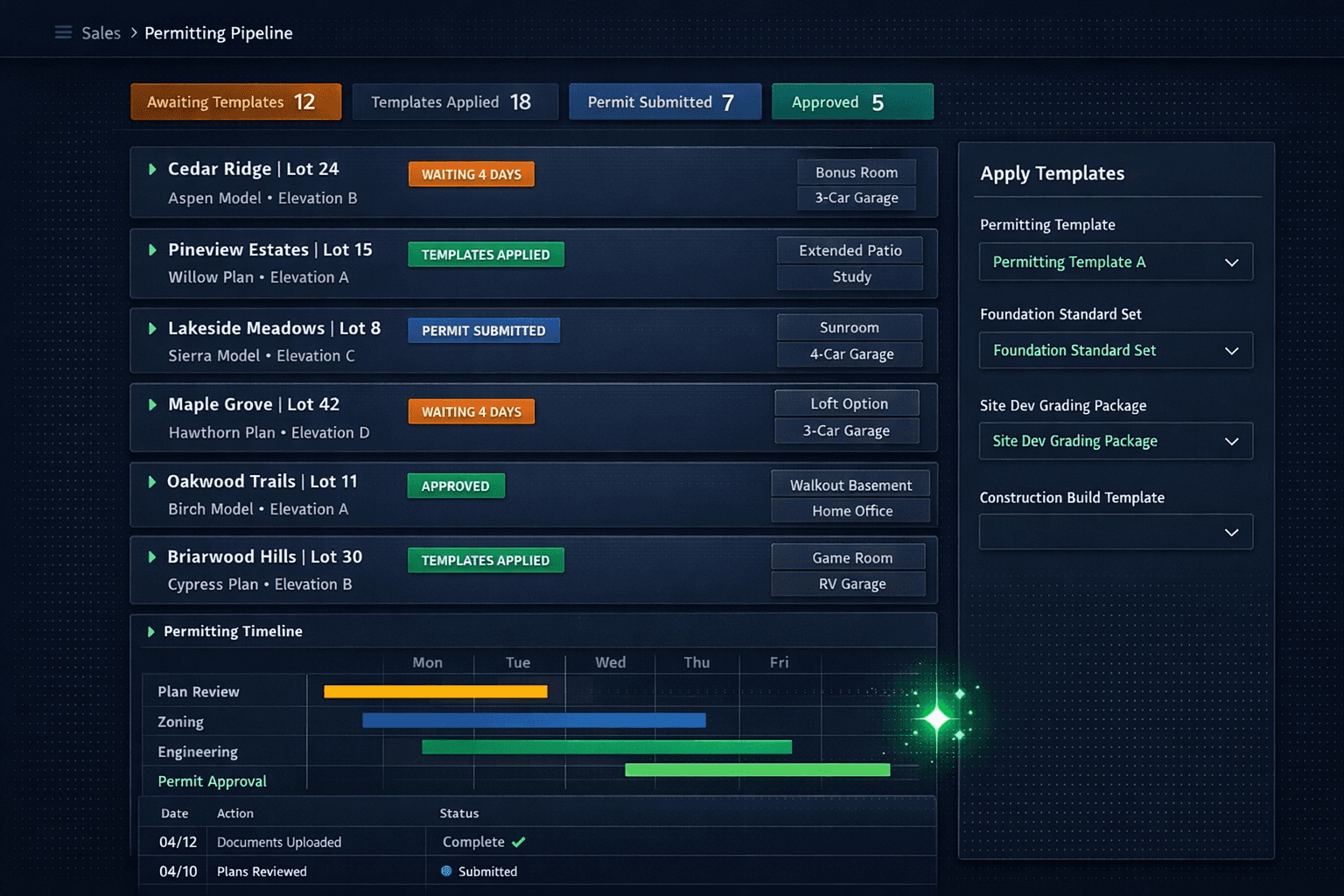
The Permitting Pipeline is a dedicated view built for the permitting agent — the person responsible for moving a sold home through templates and permit approval before the first nail goes in. Each home appears as a card showing:
- Community name, lot number, and street address
- Floorplan name and elevation selection
- Structural options the buyer selected (bonus room, finished basement, 3-car garage)
- Current pipeline status with an urgency badge if the home has waited 3+ days
The urgency badge is the part builders notice first. When a home has been sitting in Awaiting Templates for more than three days, it gets flagged. Nothing ages out of sight behind a quiet green status chip.
What are the four pipeline statuses?
Permitting Pipeline — status stages
Home sold, templates not yet applied — urgency badge fires at 3+ days
Permitting, Foundation, Site Dev, and Construction templates locked in
Application submitted; construction gated until jurisdiction approves
Permit gate clears, Gantt activates, vendors notified — build starts
Each status is a real gate, not a label. A home cannot move to construction active until its permit is marked Approved. That enforcement prevents crews from starting work that hasn't cleared the jurisdiction — which is both a legal and a scheduling problem if it goes wrong.
How does one-click template setup work?
From the Permitting Pipeline dashboard, clicking into any home in the Awaiting Templates state opens a template setup panel with four dropdown selectors: Permitting, Foundation, Site Development, and Construction. Each selector shows the available template options for that stage. Choose one from each and apply — the home moves to Templates Applied immediately.
The reason this is one screen rather than four separate module navigations is that production home builder software should know that these four templates always get applied together at this stage. A general project management tool would make you navigate to four different places, because it doesn't know what a "permitting stage" is or what it requires.
Step-by-step: closing the handoff gap
Last sales task completes — home auto-transitions
No email, no meeting, no handoff document. The last pipeline task fires the status change automatically so construction always knows the moment a sale closes.
Home appears on the Permitting Pipeline dashboard
Buyer info, structural options, floorplan, and elevation are visible at a glance. Urgency badges surface homes waiting more than three days so nothing stalls quietly.
One-click template setup applies all four templates
Select Permitting, Foundation, Site Development, and Construction templates from dropdowns. One click covers all four — no hunting across separate modules.
Permit submitted; gate enforced until approved
The permit gate prevents crews from starting work that hasn't been permitted yet. Status moves to Permit Submitted and the dashboard tracks submission date.
Permit approved — Gantt generates, vendors notified, build starts
Marking Approved clears the gate. The construction schedule goes live and vendors receive date notifications automatically — no one has to open a second system.
What happens when the permit is approved?
Marking a home Approved in the pipeline clears the permit gate and releases the construction schedule. The Gantt generates from the Construction template that was applied earlier, vendor notifications go out automatically to every trade that has a task in the first week, and the build is officially underway — without anyone opening a second system to send announcements.
This is where the template investment pays off. Because the schedule structure was applied at template time, the Gantt is not built from scratch on approval day. The task sequence, trade assignments, and dependencies are already there. The permit approval is the start signal, not the build-the-schedule signal.
Does the permitting pipeline work across multiple communities?
Yes. The dashboard shows every in-progress home across all communities in one view, which is where the urgency badges become especially useful. When a permitting agent is managing forty homes across five communities, the "waiting 4 days" badge on Cedar Ridge Lot 24 does not get buried under a clean green status. The homes that need attention surface to the top of the mental queue automatically.
The structural options column on each card is also more useful than it first appears. A home with a Bonus Room and a 3-Car Garage may require a different Foundation template than the standard plan — the PA sees that context on the card before opening the template selector, rather than having to pull up the sales notes separately.
What plan does the permitting pipeline come with?
The permitting pipeline is included from the Starter plan upward — it is not a Pro+ exclusive. Any builder on Cornerstone has access to the dashboard, the auto-transition trigger, and the one-click template setup. The production home builder who is currently losing two weeks between contract and first trade does not need to be on the highest plan to fix it.
The argument for having a dedicated pipeline stage rather than a generic task list is that the permitting stage has a specific shape: it always starts the same way (templates), it always ends the same way (approved permit), and it always blocks the same thing (construction start). A stage built for that shape enforces the shape. A task list doesn't.
Stop losing two weeks between sale and start.
Cornerstone's Permitting Pipeline closes the handoff gap with auto-transition triggers, urgency badges, one-click template setup, and permit gates that keep crews off unapproved lots — available from the Starter plan.
Request Early Access