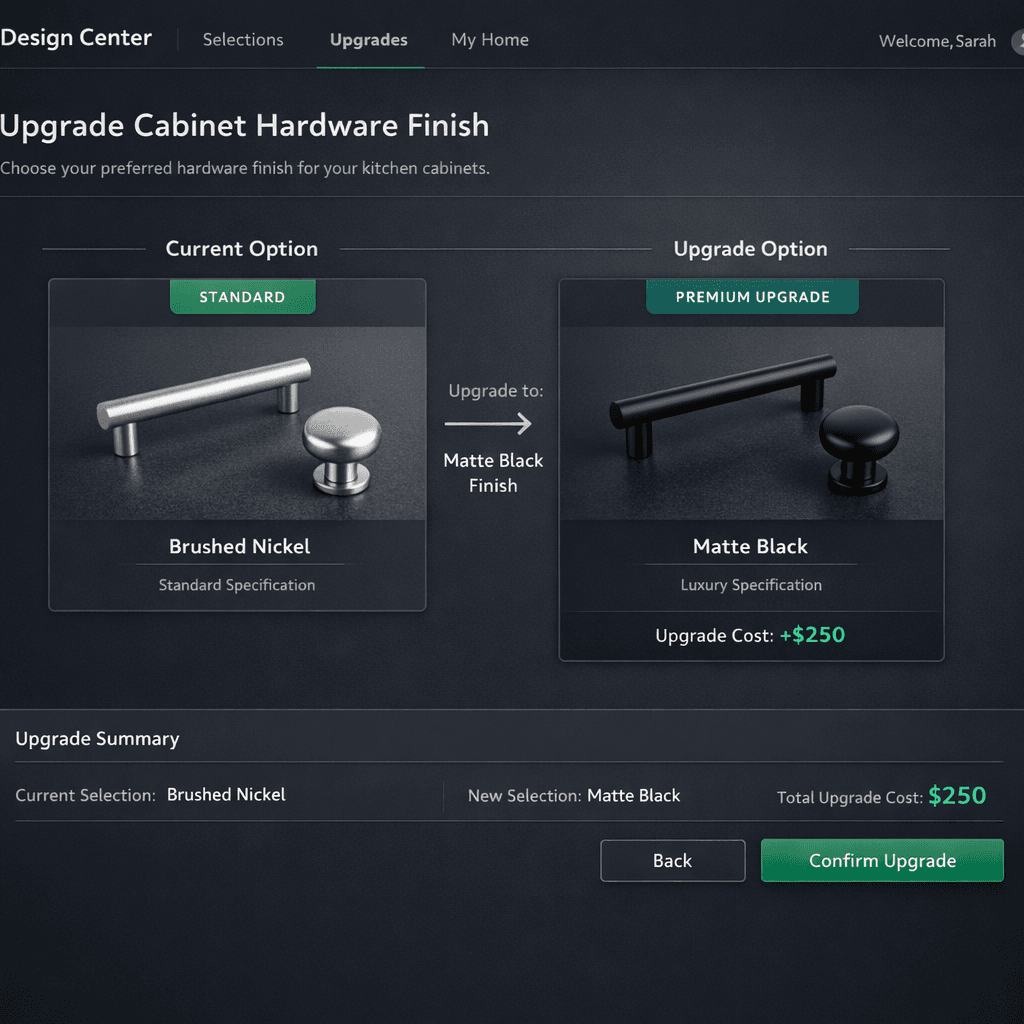
How to Turn Any Standard Finish Into a Paid Upgrade in Your Design Center
Cornerstone PM’s Design Center lets builders control included-vs-upgrade pricing down to a single option—not just whole categories. To promote any standard finish to a paid upgrade, open the option under Purchasing → Options, change its Spec Level to Upgrade I, II, or Premium, and save. That’s it.
Most design-center tools give you a binary choice: a category is either included in the base price or it’s an upgrade. If you want to offer one specific cabinet pull as a paid upgrade while every other hardware option stays included, you’re out of luck—unless you’re on Cornerstone PM.
Cornerstone operates at the individual option level. You can mark a single Level 1 (Standard) finish as a paid upgrade without touching anything else in that category. It’s the kind of granular margin control that production builders have wanted for years, and it’s built directly into the design center workflow.
Why granular upgrade control matters
When builders set base prices, they make assumptions about which finishes buyers will accept as standard. But markets shift. Material costs change. A cabinet pull that cost $4 two years ago now costs $11—and it no longer makes sense to include it in the base.
With most design-center platforms, your only option is to move the entire hardware category to “upgrade,” which forces buyers to pay for even the most basic pull. That creates friction in the sales process. Buyers who expected hardware to be included now feel nickel-and-dimed.
Cornerstone’s spec-level system solves this by letting you promote the expensive pull to Upgrade I (a paid add-on) while keeping the standard pull included in the base. The buyer still gets a clean experience—a default included option plus clear upgrade pricing for the premium version—and you protect your margin on the items that have gotten expensive.
How to promote a single option to a paid upgrade
Navigate to Purchasing → Options
Open the option you want to promote. This can be any option currently sitting at Spec Level: Standard (Level 1). It doesn’t matter which category it belongs to—hardware, flooring, countertops, appliances—the workflow is the same.
Change the Spec Level
Find the Spec Level field on the option detail page. Change it from Standard to Upgrade I, Upgrade II, or Premium. The tier you choose determines which upgrade bucket the option appears in and what price delta the buyer sees. Upgrade I is typically a light premium; Premium is a top-tier selection.
Save
Click Save. The option immediately drops out of the base price and becomes a paid +$X upgrade. No bulk operation, no category-level toggle—one option, one change.
Verify in the design center
Open the affected plan in the design center to confirm the option now shows its upgrade price. The category still has its included Standard options; the promoted option now sits in the upgrade tier alongside any other upgrades you’ve defined.
What if you want to exclude an entire category?
If your goal is to exclude a whole option class from the base budget—say, countertops are never included, every selection is a paid upgrade—there’s a faster path: the Standard/Upgrade toggle on the Spec Levels page.
Navigate to Settings → Spec Levels, find the option class you want to exclude, and flip the toggle from Standard to Upgrade. Every option in that class instantly moves out of the base budget and becomes a paid selection. You don’t have to touch each individual option.
The two mechanisms work in combination: use the Spec Levels toggle to set category-level defaults, then override individual options as needed to create exactly the right included-vs-upgrade structure for each community or plan.
A concrete example: cabinet hardware
Say your hardware category has four options:
| Option | Spec Level (before) | Spec Level (after) | Buyer impact |
|---|---|---|---|
| Satin Nickel Bar Pull (standard) | Standard | Standard | Included in base |
| Matte Black Cup Pull | Standard | Upgrade I | +$420 upgrade |
| Brushed Gold Finger Pull | Standard | Upgrade I | +$560 upgrade |
| Unlacquered Brass Bin Pull | Standard | Premium | +$1,100 upgrade |
Before the change: all four options were Standard, all included in the base price. You were giving away the Matte Black and Brushed Gold pulls—options that now cost significantly more to supply—for free.
After three spec-level changes: the Satin Nickel pull stays included as the baseline. The other three are now paid upgrades at tiered price points. Buyers who want the standard finish get it; buyers who want the premium finishes pay for them. Your margin is protected without disrupting the base-price story.
Community-based upgrade pricing
The spec-level system pairs with Cornerstone’s community-based upgrade pricing. Upgrade prices aren’t global—you can set different +$X amounts per community. The Matte Black pull might be a +$420 upgrade in Meadowbrook but a +$380 upgrade in Riverstone, reflecting different community price points and buyer profiles.
This means the same spec-level change applies everywhere, but the actual dollar amount buyers see is tuned per community. You get consistent included/upgrade logic across your entire catalog with flexible pricing per market.
How this compares to Buildertrend and JobTread
Neither Buildertrend nor JobTread has a concept of option-level spec tiers for production builders. Their selection models are designed for custom and semi-custom builders where every job is negotiated individually from scratch—allowances per job, not a repeatable options engine.
In those tools, promoting a single standard finish to a paid upgrade means editing your allowance template for every active job. On a production builder running 50 homes across 3 communities, that’s manual work at scale. On Cornerstone, you make the spec-level change once, and it propagates to every plan in every community instantly.
That’s the core difference between a tool built for custom builders and a platform built for production home builders.
When to use this feature
There are a few common scenarios where the spec-level promotion workflow pays off immediately:
- Material cost increases—a supplier raises prices on a previously inexpensive finish. Rather than raising the base price, pull that finish out and make it a paid upgrade. The included option stays budget-friendly; the upgraded version has the right price attached.
- Community-specific positioning—a finish that makes sense as standard in a value community is a reasonable upgrade in a move-up community. Use spec level to differentiate without maintaining separate plan sets.
- New year pricing resets—at the start of each model year, review your standard finishes and move anything that no longer fits your margin targets into an upgrade tier. It takes minutes, not days.
- Responding to competitor design center changes—if a competitor is advertising a feature as “included” that you currently charge for, quickly reassign those options to Standard to match without opening the base price more broadly.
The Cornerstone PM Design Center is built for exactly this kind of granular, live pricing management. One spec-level change, propagated everywhere, in seconds. No spreadsheets, no bulk re-entry, no call to a support team.
This level of control—down to a single option, not just entire categories—is part of what separates a purpose-built production builder platform from tools that were designed for custom work and retrofitted for volume. If your current design center software requires a manual update for every active job every time pricing changes, it’s worth taking a look at how Cornerstone handles purchasing and options end-to-end.
Take control of your design center pricing
Promote any standard finish to a paid upgrade in seconds. Cornerstone PM gives production builders granular included-vs-upgrade control down to the individual option—across every plan and every community, all at once.
Request Early Access →