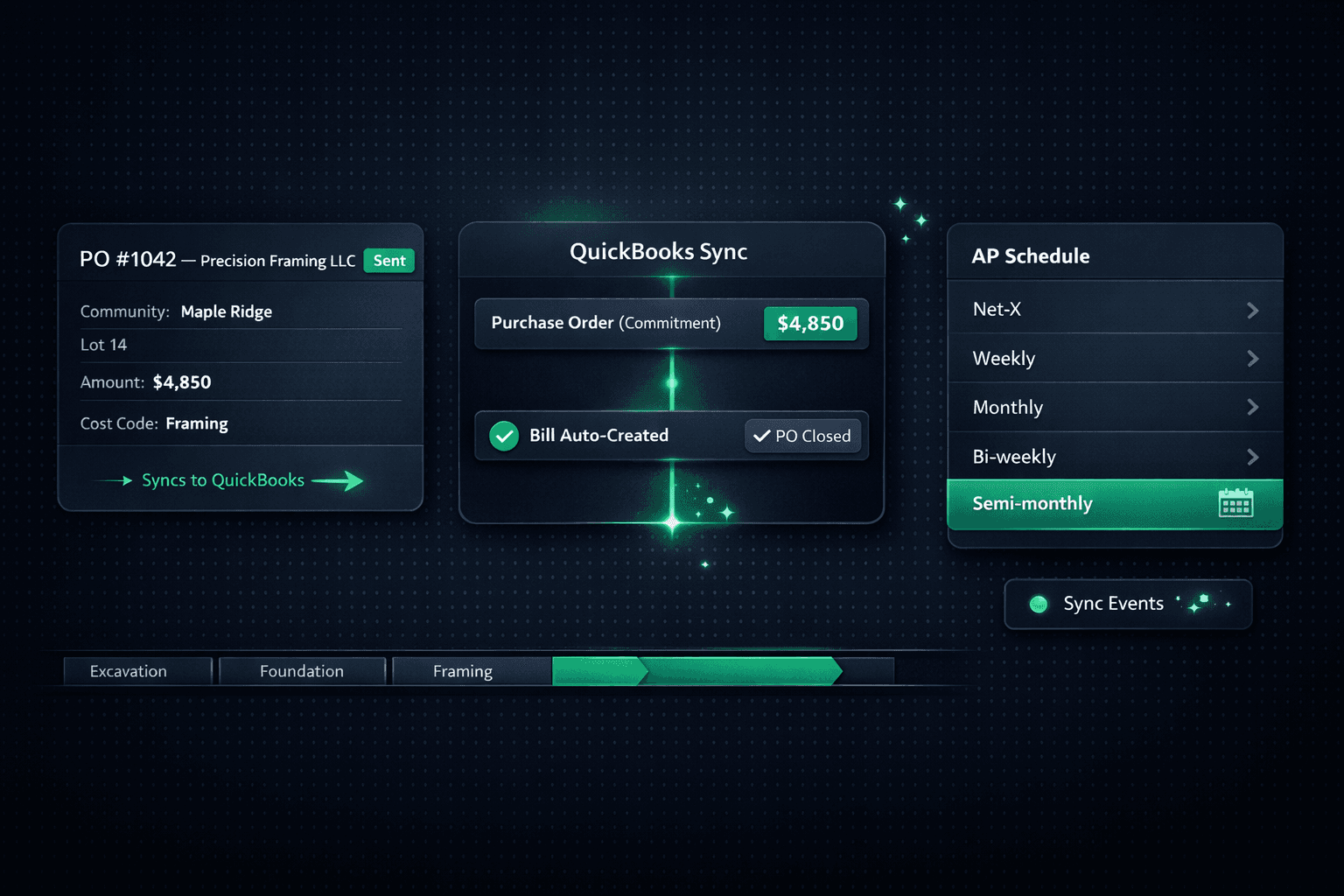
Two-Stage QuickBooks Sync: How POs Become Bills Automatically
When a PO is sent in Cornerstone, it posts to QuickBooks Online as a Purchase Order commitment. When the PO is marked received, the matching Bill auto-creates, links to the PO, and closes it — a complete accrual lifecycle with zero manual steps in between.
Most builders who integrate their operations software with QuickBooks end up with one of two problems: either they re-enter every transaction by hand (slow, error-prone), or they sync bills only after the fact and lose committed-cost visibility in between. Neither gives a clean picture of where money is going until month-end.
Cornerstone's two-stage QuickBooks sync solves both problems at once. The purchasing workflow runs entirely in Cornerstone — bid requests, vendor awards, PO generation — and QuickBooks stays current automatically at each stage, with no CSV exports and no bookkeeper touching transactions between the field and the close.
How does the two-stage sync work?
The flow maps cleanly onto the standard accrual accounting lifecycle that builders already understand. Stage 1 records the commitment when money is obligated. Stage 2 converts that commitment into a payable when work is delivered.
Stage 1 matters because committed costs are real costs. A framing PO you've already sent to a vendor has already obligated that money — a QuickBooks that doesn't show it until the bill arrives is running on incomplete information. The Purchase Order commitment in QuickBooks means your accountant and your build team are looking at the same numbers from the moment a PO is sent.
Stage 2 is what kills the reconciliation headache. When the PO is marked received in Cornerstone, the matching Bill lands in QuickBooks already linked to the open PO — so the PO closes automatically. No manual matching, no hunting for the original commitment, no duplicate entry.
What does the full accrual picture look like?
Every record type in the purchasing cycle flows through its own QuickBooks equivalent, with the two-stage flow handling the commitment-to-payable conversion automatically:
One thing that doesn't change at any stage: Cornerstone never auto-pays. The Bill lands in QuickBooks with the due date set by your AP schedule, but payment always requires manual approval inside QuickBooks. The builder — not the software — decides when money moves.
What AP schedule sets the Bill due date?
When a Bill auto-creates at Stage 2, its due date isn't left blank or defaulted to today. Cornerstone computes the due date from your AP payment schedule and carries it into the QuickBooks Bill — so vendors see the right date and your payables register reflects your actual cash-flow plan.
Five schedule types are available:
- Net-X days — due X days after the invoice date
- Weekly — any weekday you choose as the weekly payday
- Monthly— Nth weekday of the month, including “Last”
- Bi-weekly — every two weeks, anchored to a chosen payday
- Semi-monthly — two paydays a month (e.g. the 1st and 15th), keyed off the invoice/bill date
The result: every bill in QuickBooks shows the correct due date, and on payday your bookkeeper sees all bills due by that date in one place for one batch-pay approval. No hunting across individual bills, no missed vendors.
What do transaction memos look like?
Every synced PO and Bill in QuickBooks carries a structured memo so any transaction is traceable without opening Cornerstone:
Example QBO Purchase Order memo (Stage 1)
Community: Maple Ridge | Lot 14 | 847 Birchwood Ct
PO #1042 | Cost Code: Framing
Vendor: Precision Framing LLC
Matching QBO Bill memo (Stage 2 — auto-created)
Community: Maple Ridge | Lot 14 | 847 Birchwood Ct
PO #1042 | Cost Code: Framing | Bill from PO
Vendor: Precision Framing LLC
Community, lot, address, PO number, and cost code travel with the record from Stage 1 all the way through to the auto-created Bill at Stage 2. Your bookkeeper can pull any transaction from the QBO register and know exactly which home and trade it belongs to — without ever switching tabs.
Where can I see what has synced?
Accounting → Sync Events in Cornerstone shows every push to QuickBooks: the timestamp, the record type, and the result — success, pending, or failed with retry history. If a push fails due to a network issue or a QuickBooks rate limit, the retry is visible there. You always know what landed in QuickBooks and what is still queued, without logging into QBO to cross-check manually.
Why one-way sync keeps your books clean
The sync is intentionally one-directional. Cornerstone pushes to QuickBooks — not the other way. Changes made in QuickBooks (vendor names, memo edits, account reassignments) never write back to Cornerstone. Cornerstone stays the single source of truth for all job data: POs, cost codes, vendor records, community and home hierarchy.
Two-way sync creates a specific class of hard-to-detect bugs: a bookkeeper renames a vendor in QuickBooks to match their internal conventions, and the sync silently overwrites the vendor record in Cornerstone — breaking the 30 POs attached to it. One-way sync eliminates that category of error entirely. If something in QuickBooks looks wrong, you fix it in Cornerstone and the next push carries the correction.
Two-stage sync vs. manual AP: what changes
How this fits the full AP loop
The two-stage sync doesn't stand alone — it's the accounting backbone of the end-to-end purchasing workflow that starts from the moment a task is assigned:
- Task assigned in the build schedule. Cornerstone auto-generates a PO and emails it to the assigned vendor.
- PO sent → Stage 1 sync. The PO posts to QuickBooks as a Purchase Order commitment. Committed cost is visible in the books immediately.
- Work completed → Stage 2 sync. PO marked received. The matching Bill auto-creates in QuickBooks, linked to the PO, and the PO closes. No manual steps.
- AP schedule sets the due date. The Bill lands in QuickBooks with the correct due date from your AP schedule — Net-X, Weekly, Monthly, Bi-weekly, or Semi-monthly.
- Builder batch-pays on payday. All bills due by a given date appear together in QuickBooks for one manual approval run. The vendor's only job was to send an invoice.
For the complete picture — from bid requests and the vendor portal through to QuickBooks sync and AP automation — the Cornerstone PM purchasing page covers every step.
Stop managing commitments and payables separately.
Cornerstone PM's two-stage QuickBooks sync turns every sent PO into a commitment and every received PO into a linked Bill — automatically. No double-entry, no dangling open POs, no manual reconciliation between commitments and actuals.
Request Early Access